

Publishing a webpage does not automatically mean it will appear in Google Search. Before a page can rank, Google must discover, crawl and decide whether to index it.
However, website owners often encounter Google search console indexing errors that prevent important pages from appearing in search results. These issues may involve crawling restrictions, duplicate content, incorrect canonical tags, redirects or server errors.
Not every excluded URL indicates a problem. Some pages are intentionally excluded, while others require immediate attention.
This guide explains common indexing issues, their possible causes and practical solutions to help maintain a healthier website.
|
Key Takeaways
|
What Are Google Search Console Indexing Errors?
Google Search Console indexing errors are reported issues or exclusion reasons explaining why certain URLs are not included in Google’s search index.
The Page indexing report helps website owners understand which pages Google has indexed and which remain excluded.
For example, a newly published service page might appear under Crawled – currently not indexed. This means Google has accessed the URL but has not included it in its index.
Understanding these reports is important because indexing problems can prevent valuable pages from gaining organic visibility.
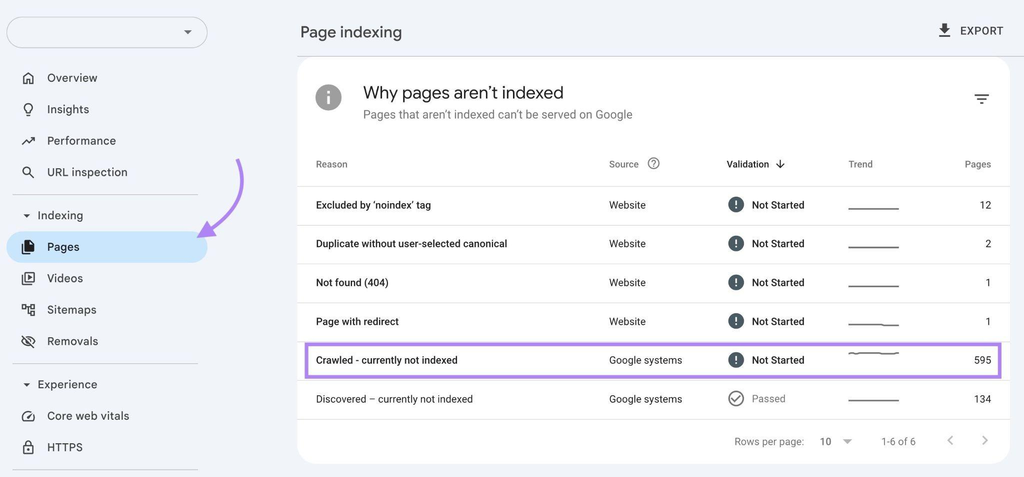
How to Check Indexing Errors in Google Search Console
Follow these steps:
- Open Google Search Console.
- Select your website property.
- Navigate to Indexing → Pages.
- Review the Indexed and Not indexed totals.
- Select an issue under Why pages aren’t indexed.
- Inspect the affected URLs individually.
Focus on pages that should appear in search results rather than attempting to eliminate every exclusion.
10 Common Google Search Console Indexing Errors and How to Fix Them
Below are the most common indexing issues website owners encounter.
1. Crawled – Currently Not Indexed
This status means Google has crawled the URL but has not included it in its search index.
Possible causes:
- Content offering limited additional value.
- Duplicate or substantially similar pages.
- Weak internal linking.
- Google has not yet selected the page for indexing.
How to fix it:
Review whether the page provides helpful, original information and satisfies a distinct search intent. Improve thin or repetitive content and add relevant internal links from existing pages.
If multiple important URLs experience similar problems, a broader review of underlying website issues can help identify recurring technical concerns.
Google does not disclose the exact reason behind every indexing decision, so avoid assuming that content quality is always responsible.
2. Discovered – Currently Not Indexed
Google knows the URL exists but has not crawled it yet.
This can happen when Google postpones crawling, particularly if accessing the website could place excessive load on its server.
How to fix it:
- Include important URLs in your XML sitemap.
- Ensure pages are accessible through internal links.
- Check server availability and performance.
- Reduce unnecessary URL variations.
If the page is newly published, allow reasonable time for Google to process it.
3. Duplicate Without User-Selected Canonical
This occurs when Google identifies duplicate content but the website has not specified its preferred URL.
For example:
- example.com/services/
- example.com/services/?source=homepage
- Both URLs may display identical content.
How to fix it:
Identify the preferred version and implement an appropriate canonical tag.
<link rel=”canonical” href=”https://example.com/services/” />
Ensure your internal links and sitemap reference the preferred URL. Where duplicate URLs are unnecessary, consider suitable redirects.
Remember that Google treats canonical tags as signals rather than absolute instructions.
4. Alternate Page With Proper Canonical Tag
This status means Google has recognised a URL as an alternate version of another page.
It is generally expected behaviour when the canonical declaration is correct.
How to fix it:
Check whether the selected canonical URL is the intended version.
If Google has correctly identified the preferred page, no action is usually required.
However, if an important page is being excluded unintentionally, review its canonical declaration, content uniqueness and internal linking.
5. Excluded by Noindex Tag
A noindex directive tells search engines not to include a page in their index.
For example:
| <meta name=”robots” content=”noindex, follow”> |
This is useful for intentionally excluded pages but problematic when applied accidentally to important content.
How to fix it:
Inspect the page’s HTML or HTTP headers and remove unintended noindex directives.
WordPress users should also review their SEO plugin settings, particularly after launching a redesigned website.
Ensure Google can crawl the page before requesting indexing.
6. Blocked by Robots.txt
The robots.txt file controls which website sections search engine crawlers may access.
For example:
| User-agent: *Disallow: /private/ |
Incorrect rules may prevent Googlebot from accessing important content.
How to fix it:
Review your robots.txt file and identify restrictions affecting important URLs.
Remove unintended blocks and test the affected pages using Search Console.
Remember that robots.txt controls crawling, not indexing directly. Google may still discover a blocked URL through external links.
7. Not Found (404)
A 404 error means the requested page cannot be found.
This commonly occurs when URLs are deleted, renamed or incorrectly linked.
How to fix it:
If the page has permanently moved, implement a 301 redirect to its most relevant replacement.
Correct broken internal links and remove deleted URLs from your XML sitemap.
If the page was intentionally removed and has no suitable replacement, returning a genuine 404 or 410 response is acceptable.
8. Soft 404
A soft 404 occurs when Google interprets a page as missing or error-like, even though the server does not return a conventional 404 response.
For example, an empty product page might display an error message while returning HTTP 200.
How to fix it:
Restore meaningful content if the page should exist.
If the content has permanently moved, implement an appropriate redirect. Otherwise, return a genuine 404 or 410 response.
9. Page With Redirect or Redirect Error
A Page with redirect status generally means Google has identified a URL that forwards users to another destination.
This is expected when pages have permanently moved.
A Redirect error, however, indicates a problem such as a redirect loop, invalid destination or excessively long redirect chain.
How to fix it:
Check whether the destination is correct and ensure the final page loads successfully.
Update internal links and sitemaps to reference the final URL.
Websites undergoing URL changes should follow a structured approach to protecting search visibility during website changes to minimise redirect and indexing problems.
10. Server Error (5xx)
Server errors occur when the website’s server cannot successfully process a request.
Common examples include:
| Error | Meaning |
| 500 | Internal Server Error |
| 502 | Bad Gateway |
| 503 | Service Unavailable |
| 504 | Gateway Timeout |
Persistent server errors can prevent Googlebot from accessing website content.
How to fix it:
Review server logs, hosting resources, plugin conflicts and application failures.
Resolve the underlying issue and verify that affected pages return successful responses.
Investigating performance bottlenecks and website stability can also help address recurring accessibility problems.
Quick Reference: Indexing Issues and Recommended Solutions
| Indexing Issue | Recommended Action |
| Crawled – currently not indexed | Review content and internal linking |
| Discovered – currently not indexed | Check crawlability and server availability |
| Duplicate without canonical | Identify the preferred URL |
| Alternate page with canonical | Verify canonical accuracy |
| Excluded by noindex | Remove unintended directives |
| Blocked by robots.txt | Correct crawling restrictions |
| Not found (404) | Restore, redirect or retire the URL |
| Soft 404 | Fix content or HTTP response |
| Redirect issues | Correct destination and redirect chains |
| Server error (5xx) | Investigate hosting and server problems |
Why Indexing Problems May Appear After a Website Revamp
Website redesigns can introduce technical changes that affect how Google accesses existing content.
Common problems include:
Changed URLs: Existing pages move without appropriate redirects.
Incorrect canonicals: New templates reference the wrong preferred URL.
Indexing restrictions: Development-stage noindex directives remain active.
Internal linking changes: Important pages become difficult to discover.
Outdated sitemaps: Submitted sitemaps contain deleted or redirected URLs.
After launching a redesigned website, compare the old and new URL structures, verify redirects and inspect important pages in Search Console.
Submitting an updated sitemap is useful, but it does not automatically resolve underlying indexing problems.
How to Fix Indexing Problems Using the URL Inspection Tool
Google Search Console’s URL Inspection tool helps investigate individual pages.
Step 1: Inspect the URL
Enter the complete URL into the inspection bar.
Review its indexing status and Google’s available crawl information.
Step 2: Check the Technical Details
Pay attention to:
- Crawl allowed status.
- Indexing allowed status.
- Last crawl date.
- User-declared canonical.
- Google-selected canonical.
These details help identify possible accessibility and canonicalisation problems.
Step 3: Test the Live URL
Select Test Live URL to check whether Google can currently access the page.
A successful live test does not guarantee indexing, but it helps verify whether technical corrections are working.
Step 4: Request Indexing
After resolving the issue, request indexing where appropriate.
For supported report issues, use Validate Fix and monitor the results.
Avoid repeatedly requesting indexing without making meaningful changes.
Best Practices to Prevent Future Google Indexing Issues
Maintaining a technically healthy website requires regular monitoring rather than fixing individual errors only when they appear.
Maintain an Accurate XML Sitemap
Include preferred, indexable URLs. Remove redirected, deleted and intentionally excluded pages.
Strengthen Internal Linking
Ensure important pages are accessible through relevant navigation and contextual links. Avoid leaving valuable content as orphan pages.
Review Canonical Tags
Check that canonical declarations consistently identify the intended URL, particularly after website updates.
Publish Helpful, Distinct Content
Avoid creating multiple pages with substantially identical information. Each important page should satisfy a clear search intent.
Implement Relevant Structured Data
Structured data helps search engines interpret eligible website content.
Businesses can improve machine-readable information through properly implemented structured data and validation.
However, schema markup does not directly resolve crawling restrictions or guarantee indexing.
Final Thoughts: Keep Your Important Pages Accessible to Google
Google Search Console indexing errors provide valuable insights into how search engines interact with your website.
The goal is not to index every URL, but to ensure that important pages remain accessible, technically sound and eligible for inclusion in Google’s search results.
Regularly reviewing crawling restrictions, canonical tags, redirects, internal linking and sitemap accuracy can help prevent avoidable indexing problems.
Need Help Identifying What’s Holding Your Website Back?
At SEOCompany.me, we help Singapore businesses identify technical issues affecting website accessibility and organic search visibility.
From investigating indexing problems to improving website structure, our team provides actionable recommendations tailored to your website.
Get Your Free Website SEO Audit and discover where your website can improve.
Frequently Asked Questions
1. Why are my website pages not indexed by Google?
Pages may remain unindexed because of crawling restrictions, noindex directives, duplicate content, incorrect canonical tags, server errors or Google’s indexing decisions. Use Search Console to identify the reported reason.
2. How long does Google take to index a new page?
Indexing can take several days to several weeks. Submitting a sitemap or requesting indexing helps Google discover a URL but does not guarantee immediate inclusion.
3. Should I fix every Not Indexed page?
No. Redirected pages, correctly canonicalised duplicates and intentionally excluded URLs may not require fixing. Prioritise pages that should appear independently in search results.
4. Can indexing errors affect keyword rankings?
Yes. Important pages that are not indexed generally cannot compete for normal organic search rankings. However, fixing indexing problems does not automatically improve keyword positions.
5. Does submitting an XML sitemap guarantee indexing?
No. An XML sitemap helps Google discover URLs, but Google independently determines whether to crawl and index each page.
Author
 Jamie
Jamie